On the Devices tab, you can choose your computer, then search or navigate to select files and folders.
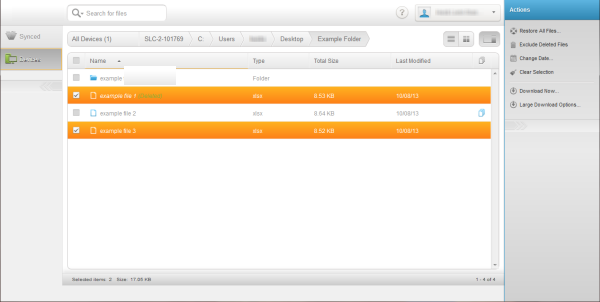
When you view your files on the Devices tab, you can take any of these actions:
| Action | Description |
|---|---|
| See a different backed up computer or device | In the top left of the Devices tab, click or tap All Devices. |
| Change views between List and Gallery | Click or tap either
 or or
 , below your user name. , below your user name.
|
| Navigate into a folder | Click or tap the icon or label for the
folder.
If you do this, any files or folders currently selected are no longer selected. To select from among multiple folders, you must use the Restore Queue. For more information, see Select Files from Different Folders on the Web. |
| Navigate using breadcrumbs | Breadcrumbs begin in the top left of the
Devices tab, next to All Devices. They identify where you are looking in your
folder structure. They also identify your search results or your backup sets.
Click or tap any part of the breadcrumb to go to that location. When looking at your folder structure, the name of the computer is the first part of the breadcrumb. The selected drive name is next, followed by the names of folders as you click down into the folder structure. The name of the folder you are currently looking at is last. If necessary due to length, names of folders may be collapsed to make room for the name of the folder you are currently looking in. If you do this, any files or folders currently selected are no longer selected. To select from among multiple folders, you must use the Restore Queue. For more information, see Select Files from Different Folders on the Web. |
| Sort the view of files and folders differently | Click or tap the label for any column to sort by that column in ascending or descending order. |
| Select all files and folders in the current view | Click or tap the checkbox to the left of the Name column label. This is not available in Gallery view. |
| Select any single file or folder in the current view | Click or tap the checkbox for that file or folder. |
| Open or close the Actions pane | Click or tap
 . .
|
| De-select all currently-selected files or folders in the current view | In the Actions pane, click or tap Clear Selection. |
| Download a single file | Select the file, then in the preview pane,
click or tap
Download.
The file is downloaded to your computer. Depending on your Web
browser, the file is saved or opened on your computer the same as any other
file you download from the internet.
If you selected a synced
file encrypted using a personal or corporate encryption key, the Restore Manager is
launched and helps you download the file. Backed up files encrypted
using a personal key must be decrypted using Crypto Utility after being
downloaded.
Use Restore Manager to
download backed up files encrypted using a corporate key.
Note: Files larger than 512 MB cannot be downloaded this way.
For such large files, click
Large Download Options to use a
different delivery method. For more information, see
Choose Delivery Method from McAfee Online Backup on the Web.
|
| Choose the delivery method for the selected files | In the Actions pane, click or tap Large Download Options. For more information, see Choosing Delivery Method in McAfee Online Backup Online. |
| See files considered deleted from your computer within your grace period | In the Actions pane, click or tap Include Deleted Files. For more information, see Recovering Files Deleted from Your Computer. |
| Change the date to see files backed up from a specific date | In the Actions pane, click or tap
Change Date. For more information, see
Recovering Older Versions of Files.
If you do this, any files you have already selected will no longer be selected. You can select files from only one date at a time. |
| See versions of a file | When visible for a file, click or tap
 . A list of versions appears. You can select only
one version of a file. For more information, see
Recovering Older Versions of Files. . A list of versions appears. You can select only
one version of a file. For more information, see
Recovering Older Versions of Files.
|
| Search for files or folders | Click in the Search box and begin typing your search term. For more information, see Search for Files in McAfee Online Backup on the Web. |